
Creating a better home office setup does not have to mean buying expensive furniture or redesigning an entire room.
For a long time, my work-from-home setup was whatever space happened to be available. Some days that meant the kitchen table. Other days it meant a small desk, a dining chair, or working from a corner that was never really designed for focused work. The problem was not that the setup was terrible. It was that small annoyances kept adding up. The screen felt too low. The chair did not feel quite right. The desk collected clutter. Cables were always in the way. And because the space was not set up clearly, starting work felt more scattered than it needed to. So I tried improving the setup without spending a lot.
The goal was simple: make the workspace easier to use, easier to reset, and more comfortable for normal workdays — without turning it into a major project.
Here is the practical checklist I used.
A Quick Note Before Starting
This article is about everyday workspace setup ideas, not medical or professional ergonomic advice.
A more comfortable desk setup may make work feel easier to manage, but it is not a treatment for pain, injury, posture issues, or other health concerns. If you have persistent discomfort or a specific medical concern, it is best to speak with a qualified professional.
The goal here is simple: reduce small workspace frustrations and make a small home office easier to use.
What I Wanted to Fix
Before buying anything, I looked at what was actually bothering me.
My main issues were:
- the screen felt too low
- the desk surface was cluttered
- the chair was not ideal for long stretches
- the keyboard and mouse position felt awkward
- the space did not have a clear “start work” feeling
- cables and small items made the desk look messy
- I kept moving things around instead of having one setup
I did not need a perfect office.
I needed a setup that made work feel less annoying.
The Under-$100 Rule
I set one rule:
Improve the workspace for under $100.
That forced me to focus on the basics instead of chasing a full office makeover.
The most useful changes were not fancy. They were small upgrades that made the workspace easier to use every day.
Step 1: Raise the Screen
The first thing I changed was screen height.
A screen that sits too low can make the whole setup feel awkward. I did not buy an expensive monitor arm. I used a simple stand.
Budget options:
- laptop stand
- monitor riser
- sturdy box
- stack of books
- small shelf riser
The goal was to bring the screen closer to eye level so I was not constantly looking down.
If using a laptop stand, it helps to use a separate keyboard and mouse if possible. That way, the laptop screen can be higher while the typing position stays lower and easier to use.
Step 2: Add a Separate Keyboard and Mouse
This was one of the most useful changes.
When I used only a laptop, everything was connected: screen, keyboard, and trackpad. That made it harder to adjust the setup.
Adding a separate keyboard and mouse gave me more flexibility.
Budget options:
- basic wired keyboard
- basic wireless keyboard
- simple mouse
- compact keyboard for small desks
- mouse pad if the desk surface is rough
This does not need to be expensive.
The main benefit is that the screen and hands no longer have to be in the exact same place.
Step 3: Make the Chair More Usable
I did not replace the chair.
Instead, I made small adjustments.
Options that helped:
- adding a small cushion
- using a folded towel for lower-back support
- adjusting chair height if possible
- placing feet flat on the floor
- using a small footrest or sturdy box if feet do not reach comfortably
The point is not to create a perfect ergonomic chair.
The point is to make the chair you already have easier to sit in for normal work sessions.
If a chair creates pain or serious discomfort, that is a different issue. But for everyday setup improvement, small adjustments can make the workspace feel more usable.
Step 4: Clear the Work Surface
A cluttered desk made the space feel harder to start using.
I did not need a perfect minimalist desk. I just needed enough clear space to work.
I removed anything that did not need to be within arm’s reach.
That included:
- old papers
- extra chargers
- random mail
- unused notebooks
- cups and dishes
- items that belonged in another room
Then I kept only the basics:
- laptop or monitor
- keyboard
- mouse
- notebook
- pen
- water
- one small tray or container for loose items
This made the desk feel less distracting.
Step 5: Create a Cable Reset
Cable clutter made the desk feel messy even when it was technically clean.
I used a simple cable reset:
- unplug anything not used daily
- group charging cables together
- use clips, ties, or bands to keep cords from spreading
- keep the most-used charger in one predictable place
- move extra cables into a drawer or container
This was a small change, but it made the setup feel much cleaner.
Step 6: Improve Lighting
Lighting matters more than I expected.
A dim workspace made the day feel heavier, especially during early mornings or late afternoons.
I did not buy anything expensive. I just adjusted the light source.
Options:
- move the desk closer to natural light
- use an existing lamp
- add a basic desk lamp
- avoid glare directly on the screen
- keep the work area evenly lit
The goal is not perfect lighting. It is simply to make the workspace easier to use without feeling dark or harsh.
Step 7: Add One “Start Work” Cue
This was less about furniture and more about routine.
When working from home, the workday can begin in a scattered way. I noticed that having one small start-work cue helped.
Examples:
- clear the desk before opening the laptop
- fill a water bottle
- open the notebook
- check the first task of the day
- turn on the desk lamp
- put the phone away from the workspace
- close unrelated tabs
This gave the workspace a clearer purpose.
It made the desk feel less like a random surface and more like a place where the workday starts.
The Under-$100 Setup Checklist
Here is the checklist I would use.
Screen Setup
- Raise laptop or monitor closer to eye level
- Use books, a riser, or a basic stand
- Reduce glare if possible
- Keep the screen directly in front of you
Keyboard and Mouse
- Add a separate keyboard if using a laptop stand
- Add a mouse if the trackpad feels awkward
- Keep keyboard and mouse close enough to use comfortably
- Avoid reaching too far forward while working
Chair and Sitting Setup
- Adjust chair height if possible
- Keep feet supported
- Use a cushion or folded towel if helpful
- Avoid sitting in one fixed position for too long
- Stand up or reset between longer work sessions
Desk Surface
- Remove items that do not belong
- Keep only daily essentials nearby
- Use one tray, box, or container for small items
- Clear the desk at the end of the day
Cables
- Remove unused cables
- Group cords together
- Keep the main charger in one place
- Use clips, ties, or bands if needed
Lighting
- Use natural light if available
- Add a small lamp if the space is dim
- Avoid screen glare
- Keep the work area visually clear
Workday Routine
- Choose one start-work cue
- Choose one end-work reset
- Write down the first task before starting
- Clear the workspace before finishing
Example Budget Setup Under $100
Here is a simple example.
| Item | Estimated Budget |
|---|---|
| Laptop stand or monitor riser | $20–$30 |
| Basic keyboard | $15–$25 |
| Basic mouse | $10–$20 |
| Desk lamp or better bulb | $10–$25 |
| Cable clips/ties | $5–$10 |
| Small tray or organizer | $5–$15 |
You do not need every item.
Start with the one change that fixes the biggest annoyance.
For many laptop users, the best first upgrade is a stand plus a separate keyboard and mouse.
Small-Space Layout Example 1: Kitchen Table Setup
If you work from a kitchen table, the challenge is that the space needs to switch back and forth.
The goal is to make the setup easy to assemble and easy to put away.
Try this:
- keep keyboard, mouse, charger, and notebook in one basket or bin
- use a portable laptop stand
- choose one seat as the work spot
- clear the table before starting
- pack everything away when work is done
This creates a temporary office without taking over the whole room.
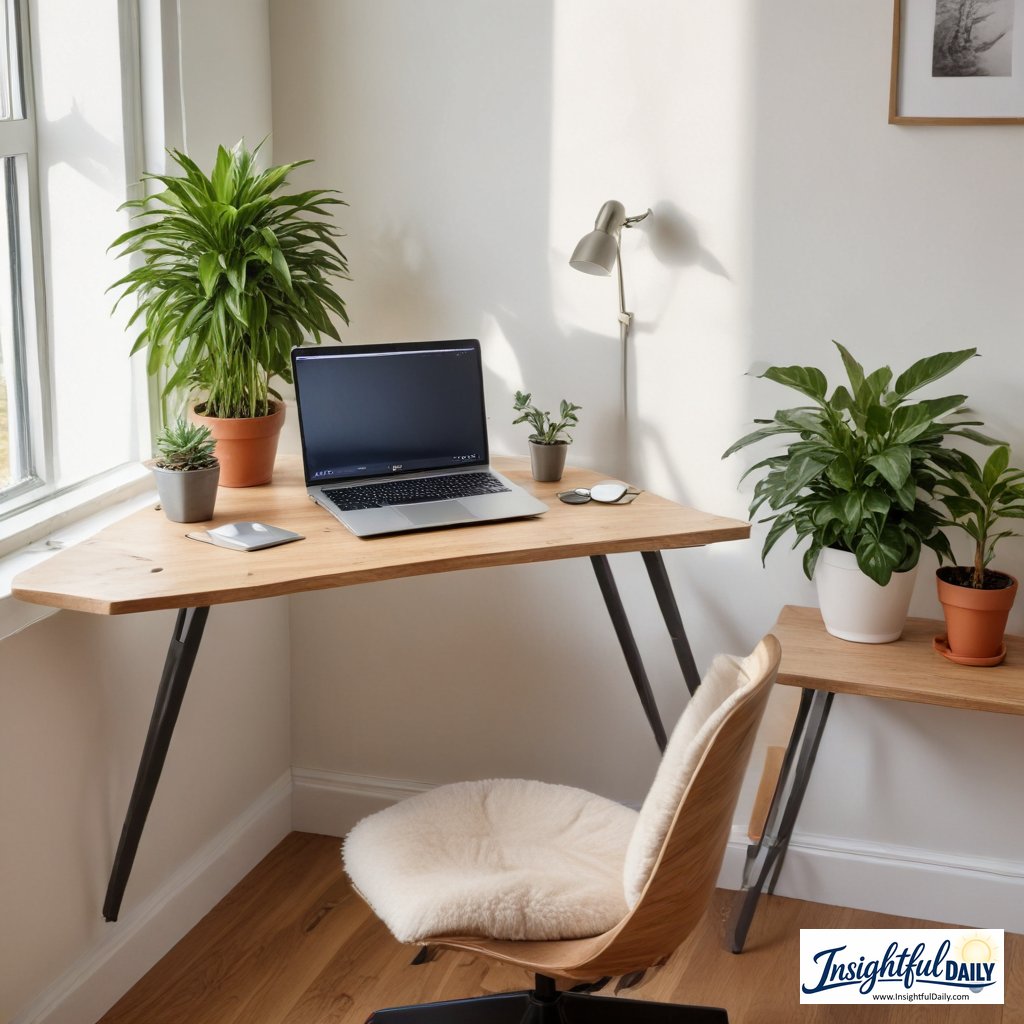
Small-Space Layout Example 2: Bedroom Corner Setup
If the desk is in a bedroom, the challenge is separation.
It can be hard to feel like work is finished when the setup is always visible.
Try this:
- use a small desk or narrow table
- keep only work items on the desk
- use a lamp as a start-work cue
- shut the laptop or cover the workspace when done
- avoid using the bed as the main workspace if possible
The main goal is to make the corner feel intentional, not like clutter.
Small-Space Layout Example 3: Shared Living Room Setup
If the workspace is in a shared room, the challenge is visual noise.
Try this:
- use a compact desk or folding table
- keep supplies in one container
- use headphones if needed
- keep the desk surface simple
- use cable ties to reduce mess
- reset the space at the end of each day
A shared space works better when the setup is easy to reset.
Small-Space Layout Example 4: No Desk Setup
If you do not have a desk, focus on making one repeatable work spot.
Try this:
- choose the same table or surface each day
- use a laptop stand or stack of books
- keep a small work kit nearby
- use a separate keyboard and mouse if possible
- put everything away in one container when finished
The key is consistency.
Even if the setup is temporary, using the same spot and same tools makes work feel less scattered.
What Helped Most
The most helpful upgrade was raising the screen and using a separate keyboard and mouse.
That made the setup feel less cramped.
The second most helpful change was clearing the desk surface.
A clear desk did not magically make me more productive, but it made starting work feel easier.
The third helpful change was creating a simple end-of-day reset.
When I cleared the desk at the end of the day, the next morning felt less messy before it even started.
What Did Not Help
Buying random office items did not help.
At first, it was tempting to buy organizers, accessories, and tools without knowing what problem they were solving. That usually just added more stuff.
What worked better was identifying the biggest friction first.
For example:
- If the screen feels too low, raise the screen.
- If the desk feels cluttered, remove items.
- If the chair feels awkward, adjust what you already have.
- If the day starts scattered, create a start-work cue.
The best upgrade is the one that solves a real problem.
What I Would Do First
If I were starting from scratch, I would do this in order:
- Clear the desk or work surface.
- Raise the screen.
- Add a keyboard and mouse if using a laptop stand.
- Improve lighting.
- Organize cables.
- Add one start-work cue.
- Add one end-work reset.
That order keeps the setup practical.
It also avoids spending money before you know what actually needs to change.
A Simple End-of-Day Reset
This made the setup easier to maintain.
At the end of the day:
- Close unnecessary tabs.
- Write down the first task for tomorrow.
- Put away loose papers or dishes.
- Return chargers and supplies to their place.
- Clear the keyboard/mouse area.
- Turn off the desk lamp or shut the laptop.
This took only a few minutes, but it made the next workday easier to start.
Who This May Help
This may help if you work from home, use a small desk, share your workspace, or feel like your setup makes the day more scattered than necessary.
It may also help if you want a practical workspace improvement without buying a full office setup.
It may not solve every issue. If your workspace causes persistent pain, discomfort, strain, or health concerns, it is worth getting advice from a qualified professional.
But if the problem is a cluttered, awkward, or inconsistent setup, a few small changes can make the workday feel easier to manage.
Final Takeaway
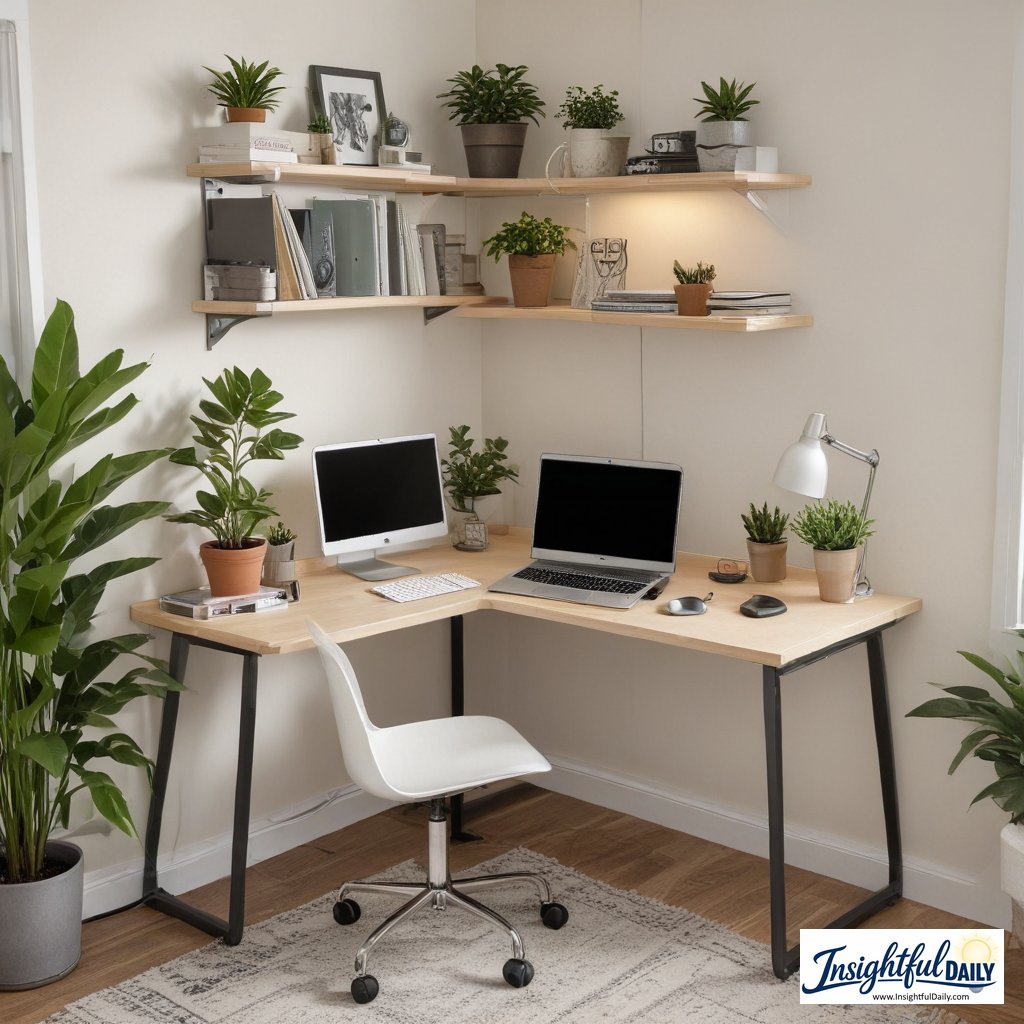
A better home office setup does not have to be expensive. The most useful changes are usually simple:
- raise the screen
- make typing and clicking easier
- clear the desk
- improve lighting
- organize cables
- create a start-work cue
- reset the space at the end of the day
For me, the goal was not to build a perfect office.It was to make the workspace easier to use every day. That made the workday feel less scattered, and it made the small space feel more intentional.