
Working from home became easier for me once I stopped trying to create the perfect home office.
For a long time, I thought the problem was the space itself. I did not have a separate office, a perfect desk, or a setup that looked like the ones in photos. Some days I worked from a small desk. Other days I used the kitchen table, a bedroom corner, or whatever surface was available. But after paying closer attention, I realized the bigger issue was not that my workspace was small.
The issue was that it had no clear routine. The desk collected clutter. My laptop moved around. Chargers disappeared. Work started before the space felt ready. And at the end of the day, everything stayed open, which made the next morning feel messy before it even started. So I tried a simple work-from-home setup reset. Not a full office makeover. Not a shopping list. Just a practical way to make the space easier to start, use, and reset.
Here is what helped.
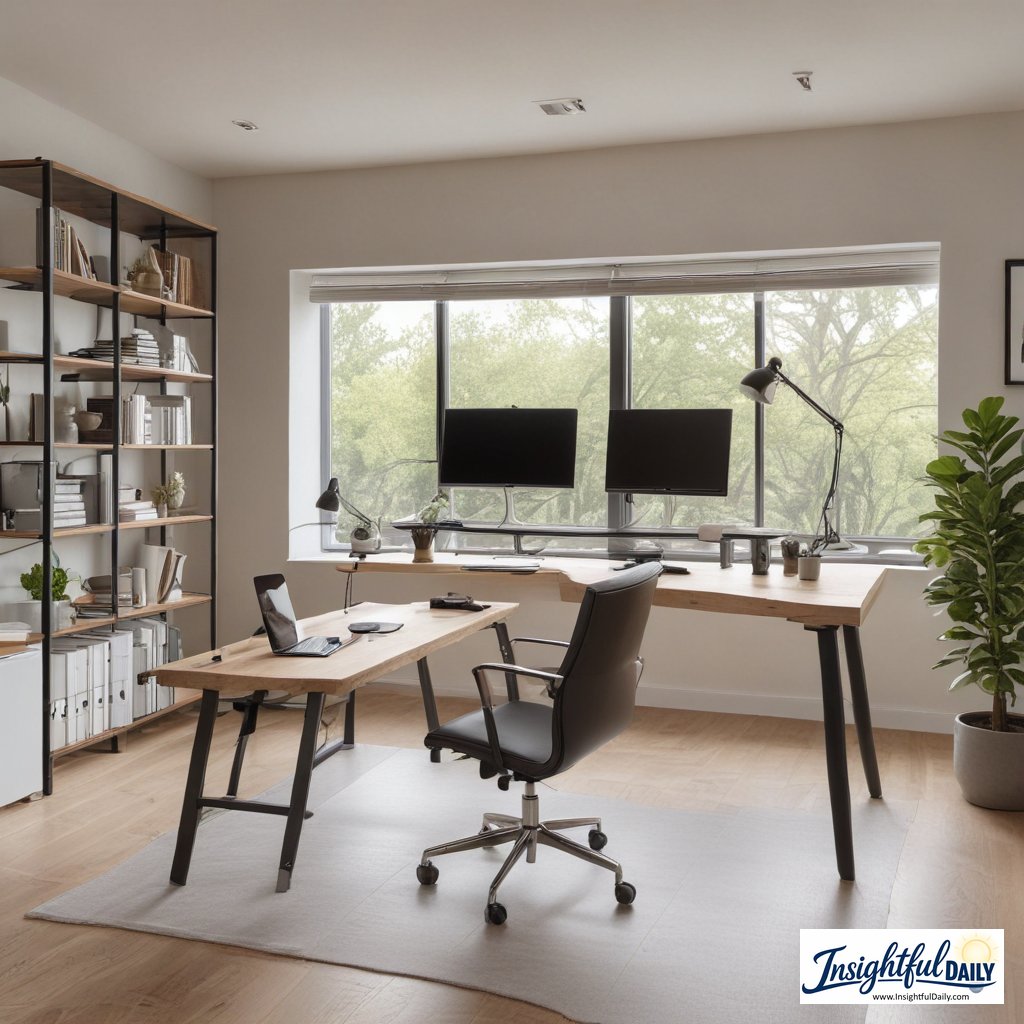
What This Setup Reset Is
This is a simple workspace routine for people who work from home in normal, imperfect spaces.
It is not about building a perfect office.
It is about making your work area easier to use every day.
The goal is to create:
- one clear work zone
- fewer items on the desk
- a predictable place for supplies
- a simple start-work routine
- a simple end-work reset
- a setup that does not take over the whole room
This is especially useful if you work from a small apartment, shared room, kitchen table, bedroom corner, or multipurpose space.
A Quick Note Before Starting
This article is about practical workspace organization and daily routine setup.
It is not medical advice, ergonomic advice, or professional workplace guidance. If you have pain, discomfort, injury concerns, accessibility needs, or a specific work requirement, it is best to get advice from a qualified professional or follow your employer’s workplace guidance.
The goal here is simple: make a home workspace easier to use and easier to reset.
What Was Not Working Before
Before I changed anything, my work-from-home setup had a few problems.
None of them were dramatic, but they kept making the day feel more scattered.
The biggest issues were:
- the desk was rarely fully clear
- chargers and cables moved around too much
- work papers mixed with personal items
- I did not have one predictable place for supplies
- the workspace did not have a clear start or end
- I sometimes opened my laptop before knowing the first task
- the room still felt like “work” after the workday ended
The space was usable, but it did not support the day very well.
That was what I wanted to fix.
Step 1: Choose One Main Work Zone
The first thing I did was choose one main work zone.
This did not have to be a full office.
It could be:
- a small desk
- one side of a dining table
- a bedroom corner
- a folding table
- a kitchen counter
- a shared living room spot
- a portable setup that gets packed away
The important part was choosing one default place.
Before this, I moved around too much. That made the workday feel less settled because I was always setting up from scratch.
Once I chose one main zone, the setup became easier to repeat.
Step 2: Clear the Surface Before Adding Anything
I used to think I needed more organizers.
But first, I needed less clutter.
Before adding anything to the workspace, I cleared the surface completely.
Then I only put back what I actually needed for a normal work session:
- laptop or monitor
- keyboard and mouse, if used
- charger
- notebook
- pen
- water
- one small tray or container
- any work-specific item I used daily
Everything else had to move somewhere else.
This made the space feel easier to start using.
It also made it easier to notice when clutter started building up again.
Step 3: Create a Small Work Kit
This helped most when I worked from a shared or temporary space.
Instead of spreading work items around the room, I created one small work kit.
That could be a basket, box, drawer, tote, or tray.
Inside, I kept:
- charger
- headphones
- notebook
- pens
- sticky notes
- small office supplies
- cleaning cloth
- any adapter or cable I used often
The work kit made setup faster because everything had one place to return to.
It also helped keep work from taking over the whole room.
Step 4: Make Cables Less Annoying
Cables were a small problem that created daily friction.
I would look for the charger, move cords out of the way, untangle something, or leave cables across the desk.
So I made one simple cable rule:
Only the daily-use cables stay near the workspace.
Everything else goes into the work kit or a drawer.
I also grouped cords together using clips, ties, or simple bands.
This did not make the workspace perfect, but it made the desk feel less messy.
Step 5: Add One Start-Work Cue
Working from home can make the start of the day feel blurry.
There is no commute, no office door, and no clear transition unless you create one.
So I added a start-work cue.
A start-work cue is one small action that tells your brain, “This is where the workday begins.”
Examples:
- clear the desk
- fill a water bottle
- turn on the desk lamp
- open the notebook
- write down the first task
- put the phone away from the desk
- close personal tabs
- put on headphones
- sit in the same work spot
The cue does not need to be impressive.
It just needs to be repeatable.
For me, the best cue was clearing the surface and writing down the first task before opening messages.
Step 6: Choose the First Task Before Opening Everything
This was one of the biggest improvements.
Before, I often opened my laptop and immediately checked whatever was most visible: email, messages, tabs, notifications, or unfinished tasks.
That made the day reactive.
So I started writing down the first task before opening everything.
Not a full plan. Just one starting point.
Examples:
- draft the first section of the article
- review the spreadsheet
- answer the three most important messages
- outline the meeting notes
- update the project list
- prepare the first file
- finish yesterday’s open task
This made the workspace feel more purposeful.
The desk was not just a place to open the laptop. It became a place to start one clear task.
Step 7: Make the Space Meeting-Ready
I did not need a perfect background.
But I did need the space to be ready enough that video calls did not create extra stress.
I checked a few simple things:
- Is the background reasonably clear?
- Is the lighting good enough?
- Are headphones nearby?
- Is the charger within reach?
- Is the camera angle acceptable?
- Is there anything distracting behind me?
- Do I have water nearby?
This was not about creating a professional studio.
It was about avoiding the last-minute scramble before calls.
A simple meeting-ready setup made the day feel smoother.
Step 8: Create a Distraction Parking Spot
One problem with working from home is that personal items easily mix with work items.
Mail, dishes, laundry, packages, books, and random objects end up near the laptop.
So I created a distraction parking spot.
This was just a basket or corner where non-work items could go temporarily.
If something did not belong on the desk, but I did not want to leave the room to deal with it immediately, it went into the basket.
This kept me from interrupting work every few minutes.
At the end of the day, I emptied the basket.
Step 9: Add an End-Work Reset
The end-work reset was just as important as the start-work cue.
Without it, work stayed open in the room.
At the end of the day, I did a short reset:
- Close unnecessary tabs.
- Write down the first task for tomorrow.
- Put papers or supplies back in one place.
- Return dishes or personal items.
- Plug in the charger.
- Clear the desk surface.
- Shut the laptop or turn off the lamp.
This usually took less than five minutes.
But it made the next morning easier because the workspace was ready again.
The Work-From-Home Setup Checklist
Use this checklist to reset your space.
Main Work Zone
- Choose one default work spot
- Keep the setup repeatable
- Avoid moving around unless needed
- Make the space easy to start using
Desk or Surface
- Clear the surface
- Keep only daily-use items nearby
- Remove old papers, dishes, and random items
- Use one tray or container for small items
Work Kit
- Keep charger in one place
- Store headphones nearby
- Keep notebook and pens together
- Add adapters or cables if needed
- Use a basket, box, drawer, or tote
Start-Work Cue
- Clear the desk
- Fill water
- Turn on lamp
- Open notebook
- Write down first task
- Put phone away
- Close unrelated tabs
Meeting Setup
- Check background
- Check lighting
- Keep headphones nearby
- Keep charger nearby
- Remove visual clutter
- Keep water nearby
End-Work Reset
- Close tabs
- Write tomorrow’s first task
- Put supplies away
- Clear desk
- Return personal items
- Plug in charger
- Shut laptop or turn off lamp
Small-Space Setup Example 1: Kitchen Table
A kitchen table setup needs to be easy to remove.
The best approach is to keep everything portable.
Try this:
- use one basket for work supplies
- keep charger and headphones in the basket
- use a laptop stand only if it is easy to move
- clear the table before starting
- pack everything away when finished
- avoid leaving work items on the table overnight
The goal is to let the space become a kitchen table again when work is done.
Small-Space Setup Example 2: Bedroom Corner
A bedroom workspace needs a clear ending.
Otherwise, work can feel like it is always nearby.
Try this:
- keep the desk surface simple
- use a lamp as a start-work cue
- close the laptop at the end of the day
- put papers away before evening
- avoid letting the desk become general storage
- use a small basket for work supplies
The goal is to keep the workspace from taking over the room.
Small-Space Setup Example 3: Living Room Desk
A living room setup needs to manage visual clutter.
Try this:
- keep only the essentials on the desk
- use cable ties or clips
- store supplies in one container
- reset the desk after work
- keep the background simple for calls
- avoid mixing entertainment items with work items
The goal is to make the workspace feel intentional without dominating the room.
Small-Space Setup Example 4: No Dedicated Desk
If you do not have a dedicated desk, the routine matters even more.
Try this:
- choose the same surface each workday
- keep a portable work kit
- set up the same way each time
- write down the first task before opening messages
- pack everything away at the end
- use a basket or tote to keep supplies together
A repeatable setup can make even a temporary workspace feel easier to use.
What Helped Most
The most helpful change was creating a start-work cue.
That made the day feel less random.
The second most helpful change was the end-work reset.
That made it easier to stop letting work items spread into the evening.
The third most helpful change was the work kit.
Having one place for chargers, headphones, and supplies saved small amounts of time and frustration every day.
What Did Not Help
Trying to make the space look perfect did not help.
It made the project bigger than it needed to be.
Buying office supplies before clearing the desk also did not help. More containers do not solve the problem if too many things are already in the space.
Moving around too much did not help either.
Some variety is fine, but constantly changing work spots made it harder to build a routine.
What helped was making the setup boring and repeatable.
That is what made it easier to use.
The 10-Minute Work-From-Home Reset
If the workspace feels messy, use this quick reset.
Minute 0–2
Remove dishes, trash, and anything that obviously does not belong.
Minute 2–4
Put supplies back in one place.
Minute 4–6
Fix cables and plug in what needs charging.
Minute 6–8
Clear the main work surface.
Minute 8–10
Write down the first task for tomorrow.
This is enough to make the next work session easier to start.
How This Is Different From a Home Office Upgrade
A home office upgrade is about equipment.
A work-from-home setup reset is about routine.
You can have a good chair, a monitor, and a desk and still feel scattered if the space has no clear start or end.
That is why this reset focuses on:
- where work starts
- what stays on the desk
- where supplies go
- how the day begins
- how the day ends
- how the space resets
The setup does not need to be expensive.
It needs to be easy to repeat.
Who This May Help
This may help if you work from home in a small space, shared space, or multipurpose room.
It may also help if your desk gets cluttered quickly, your workday starts reactively, or your workspace never feels fully reset.
It may not solve deeper work challenges, workload issues, household interruptions, or equipment needs.
But if the problem is that your work area feels scattered, a simple setup routine can make the day easier to begin and easier to close.
Final Takeaway
A good work-from-home setup does not have to be perfect. It has to be usable.
For me, the biggest improvements came from simple routines:
- choose one main work zone
- clear the surface
- keep supplies in one place
- create a start-work cue
- write down the first task
- make the space meeting-ready
- reset the desk at the end of the day
The space did not need to look like a perfect office. It just needed to make the workday feel easier to start, use, and put away.